Turning a vigor map into a pruning crew work order
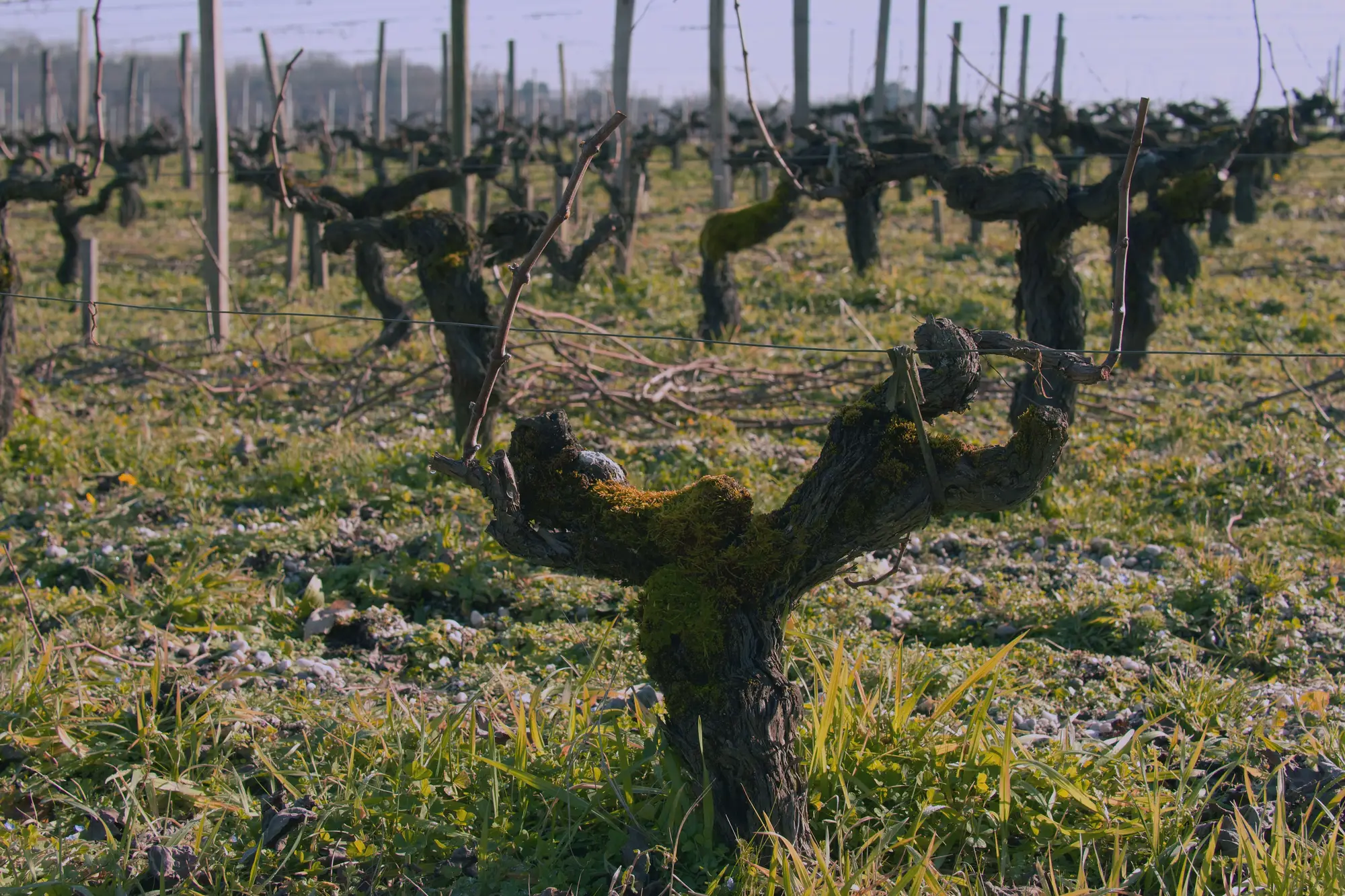
A vigor map looks great in a meeting. Green zones, yellow zones, a few red patches where something's clearly wrong. Everyone nods. Then Monday comes and the pruning crew needs an actual work order: which rows to hit first, how hard to cut back, which vines to just flag and move past. That's the part a lot of vigor maps never get to.
The map supplies the vigor data. Turning that data into something a crew foreman can run with takes a translation step, and that's what the rest of this covers.
Sorting zones into pruning instructions, not just colors
Most vigor maps split a block into three or four bands, and most growers already know roughly what each band means for their program. High-vigor zones usually mean leaving more buds and hedging later in the season to slow canopy growth. Low-vigor zones usually mean a harder spur prune, fewer buds retained, maybe a closer look at whether irrigation is reaching that panel at all. The dead or near-dead patches are a different category entirely: those aren't a pruning call, they're a replant flag.
The mistake is handing a crew the color map and expecting them to make that translation in the field. They won't, not consistently, and you'll get three different interpretations of "medium vigor" from three different pruners working the same block. The work order needs to do that translation before anyone picks up loppers. Write the instruction next to the zone, not just the color.
What goes on the work order
A usable pruning work order names the block, gives row ranges (not just "the north end"), and pairs each range with a one-line instruction: hard prune, standard spur, retain extra canes, skip and flag for replant crew. If you're running a vigor score per vine rather than per zone, you can tighten this further, listing the vine numbers or GPS stakes where vigor falls outside the normal range for that panel, so the crew isn't second-guessing which plant looks "weak enough" to warrant the harder cut.
Include a gap count too. Every block has missing vines the crew walks past without really registering, because nobody's counting, they're pruning. If the work order already has those gaps located, the same trip that prunes the block can also flag or stake replant sites, instead of running a separate walk-through later for something the crew already saw.
Staging the crew block by block
The other half of this is sequencing. A work order that jumps a crew between three vigor classes across five blocks in one day burns time on repositioning and tool changes that a tighter route avoids. Group the work by block first, then by vigor zone within the block, so a crew runs hard-prune rows together, then standard rows, then whatever needs the closer look. Foremen who've done this for a few seasons usually have their own feel for the order, but it still needs to be written down for whoever's running the saw that week, not carried in one person's head.
Where the vigor score should come from
The vigor map feeding the work order matters more than the format of the work order itself. A sample walk-through covering a fraction of a block, scaled up to represent the whole thing, misses the exact panels and individual vines a pruning crew needs called out. A full-block pass from drone or aircraft imagery, scored vine by vine rather than estimated by zone, gives you row-level and plant-level detail instead of a rough gradient. Vineyard Mapping builds that kind of block-by-block vine count, with a canopy size and vigor score for every plant, specifically so the replant flags and the pruning instructions can come off the same pass instead of two separate trips through the block.
If your crew is still working off hand-drawn zone maps from last year's walk-through, the gap between what the map shows and what's in the row only grows wider each season. Worth seeing what a full count of the block looks like before the next pruning window opens.